Decksprig / Five-minute guide
From first edit to export.
A short path through the real editor. Desktop is the primary editing surface.
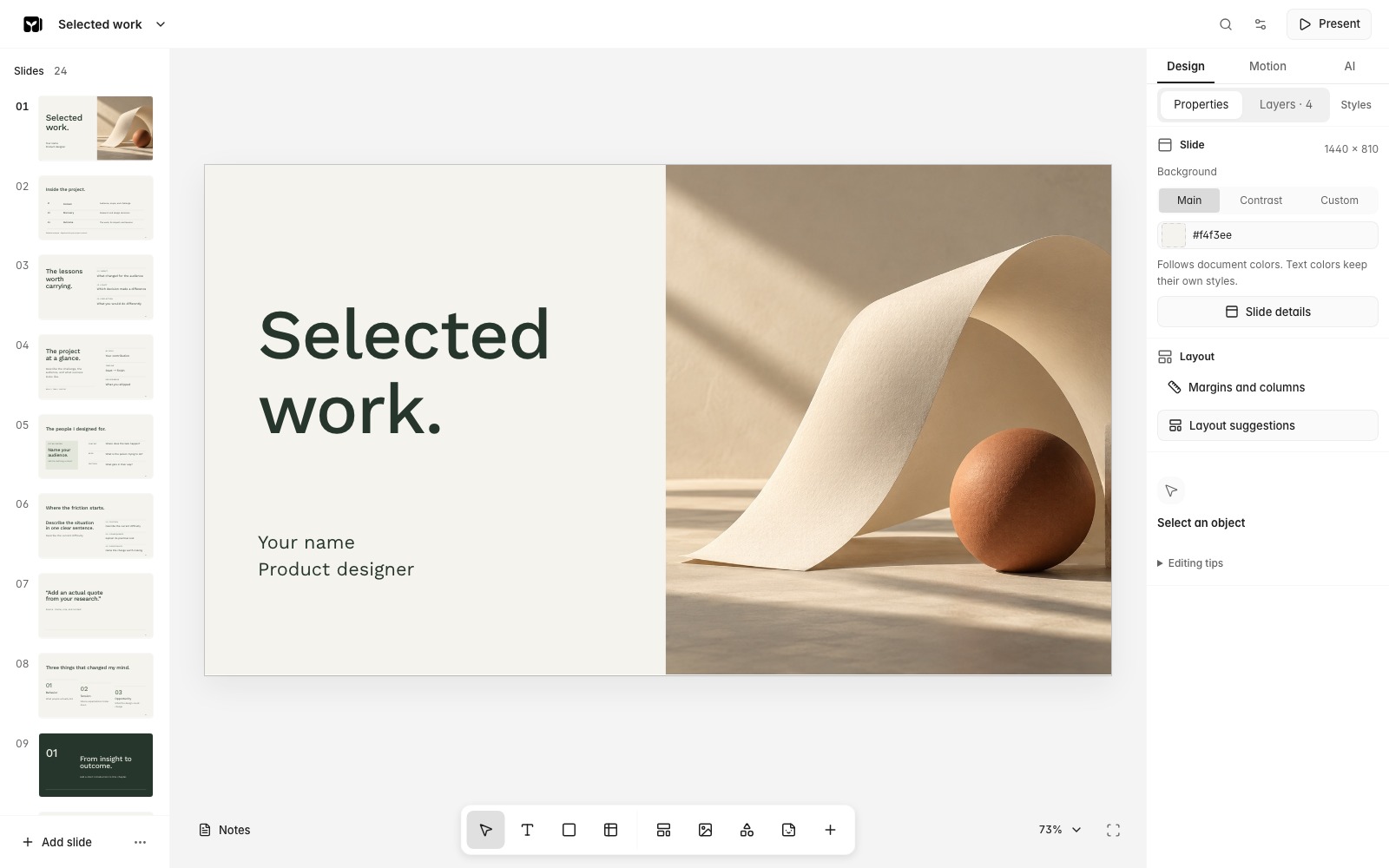
1. Start a document
The sample link creates a new three-slide document and preserves existing documents. Read and close its import report. On the editor home, choose a template or start blank. AI is optional.
2. Make a change
Rename the document in the top bar. Choose a slide, then select text and choose Edit text, or double-click it to edit. Click outside to finish. Select objects to change their properties; grouped objects may need another click to select a member.
Document menu → Undo reverses your last change. Command/Control+Z also works on desktop.
3. Present
Choose Present. Use arrows to advance and Escape to return. Hidden slides stay editable and are skipped in presentation.
4. Back up and share
- Deck file: Document menu → Export document → Deck file. This is your full editable backup.
- PowerPoint: supported editable objects; check fonts and effects in the target app.
- Web page: standalone HTML with motion. Remote images and prototypes may still need the network.
- PDF: opens your browser print dialog. Choose Save as PDF.
Edits save automatically. Wait for “Saving…” to finish before closing. If “Not saved” appears, keep the tab open and export a Deck backup. Documents stay in this browser and do not automatically sync. Export backups before clearing site data. Before sharing, check notes, hidden slides, source links and embedded media.
Work with AI
- Configure your own provider, model and session key in Settings → More settings → AI models → Connect provider.
- Choose the editing scope in the AI panel. Say what to change and what to preserve.
- Review the proposal, then choose Apply changes. Applied changes remain undoable.
Try: “Shorten this slide's title to eight words. Keep all numbers, citations and other objects unchanged.” Relevant context goes to your chosen provider.
5. Run on your computer
Install Node.js 22.14 or newer and Git. Then:
git clone https://github.com/Ken-pan/decksprig.git
cd decksprig
npm ci
npm run dev
Open http://127.0.0.1:4310/ and keep the terminal running. Local documents and originals live in .data/; stop the app before backing up that folder. Browser and local document libraries are separate.
Limits and help
PPTX conversion may change complex fonts, charts and effects. PDF supplies references and extracted text. Native Keynote conversion requires running Decksprig locally on a Mac with Keynote installed. Optional AI, Figma and Google workflows need your own configuration.
Open editorMoving from Deckleaf
Your browser documents stay at the address where you saved them. Open the previous editor, export Deck files, then import them here. Local data and document formats remain compatible. Migration notes ↗